

Section outline
-
Introduction
In this section, you will gain an essential foundation in understanding Moodle 5.1, a critical tool for SaaS clients, LMS managers, and L&D designers. You will explore the basic user interface, learn key terminology, and comprehend the crucial role of a Moodle administrator. This knowledge is vital for effective site management and paves the way for more advanced administration skills.
Learning Objectives
- Understand the fundamental concepts and terminology related to Moodle 5.1.
- Navigate the basic user interface of Moodle 5.1 effectively.
- Recognize the responsibilities and capabilities of a Moodle administrator.
-
Introduction
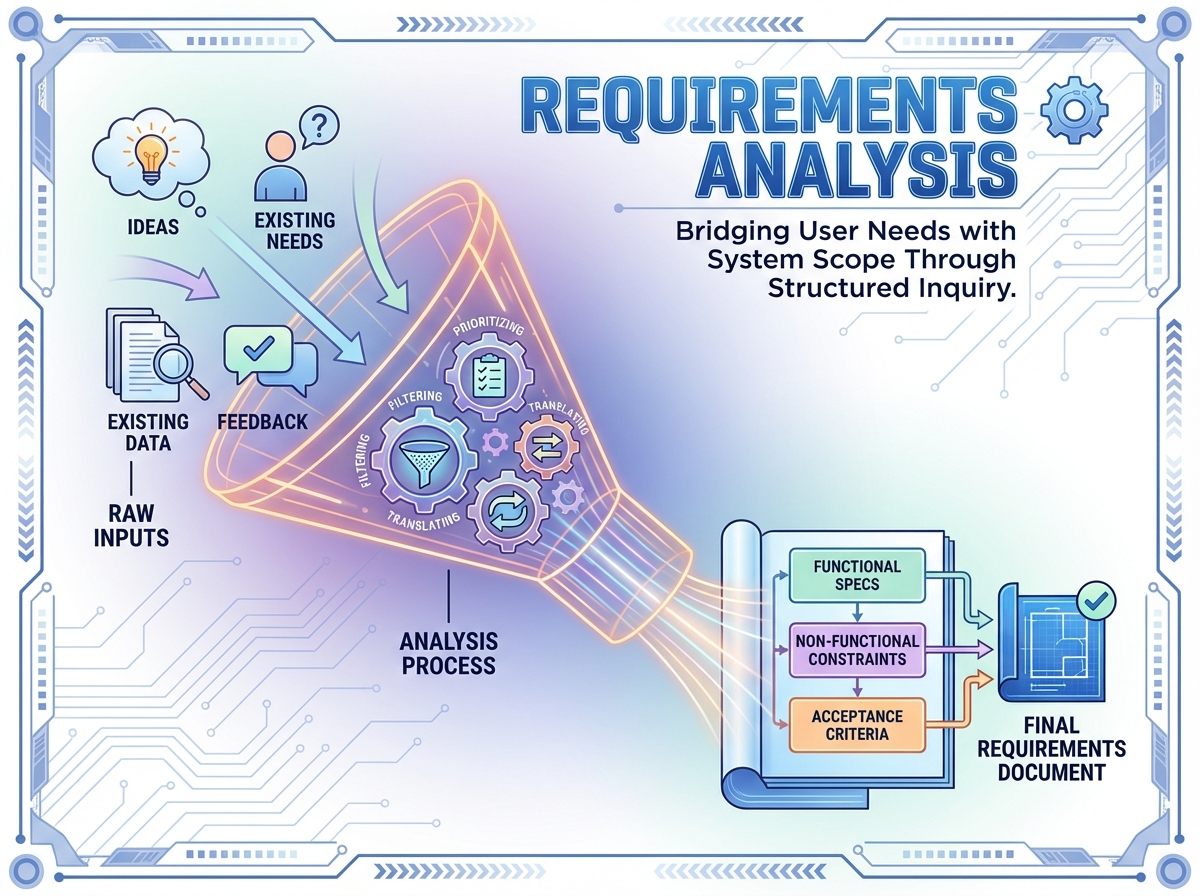
In this section, we will delve into the critical process of Requirements Analysis, a fundamental step for any Moodle5.1 site administrator. By understanding and precisely identifying stakeholder needs, Moodle SaaS clients, LMS managers, and L&D designers can ensure that the Moodle environment is perfectly tailored to meet the educational demands and technical capabilities of their institutions. This section lays the foundation for successful Moodle implementation by emphasizing effective requirement gathering and planning for future scalability.
Learning Objectives
- Identify and articulate the needs of various stakeholders using Moodle5.1.
- Develop a comprehensive pre-onboarding checklist to streamline the setup process.
- Analyze technical and functional requirements to ensure alignment with stakeholder needs.
- Plan for the future scalability of Moodle5.1 implementations.
Activities: 15 -
Introduction
In this section, you'll gain the foundational skills necessary to create impactful and engaging courses within Moodle 5.1. This is particularly important for Moodle SaaS clients, LMS managers, and L&D designers looking to enhance their e-learning offerings. You'll learn how to design dynamic content that supports effective learning experiences and align your courses with organizational goals.
Learning Objectives
-
Understand the principles of designing engaging and effective learning content using Moodle 5.1.
-
Learn how to structure courses for maximum learner impact.
-
Identify best practices for multimedia integration in Moodle courses.
Activities: 6 -
-
Introduction
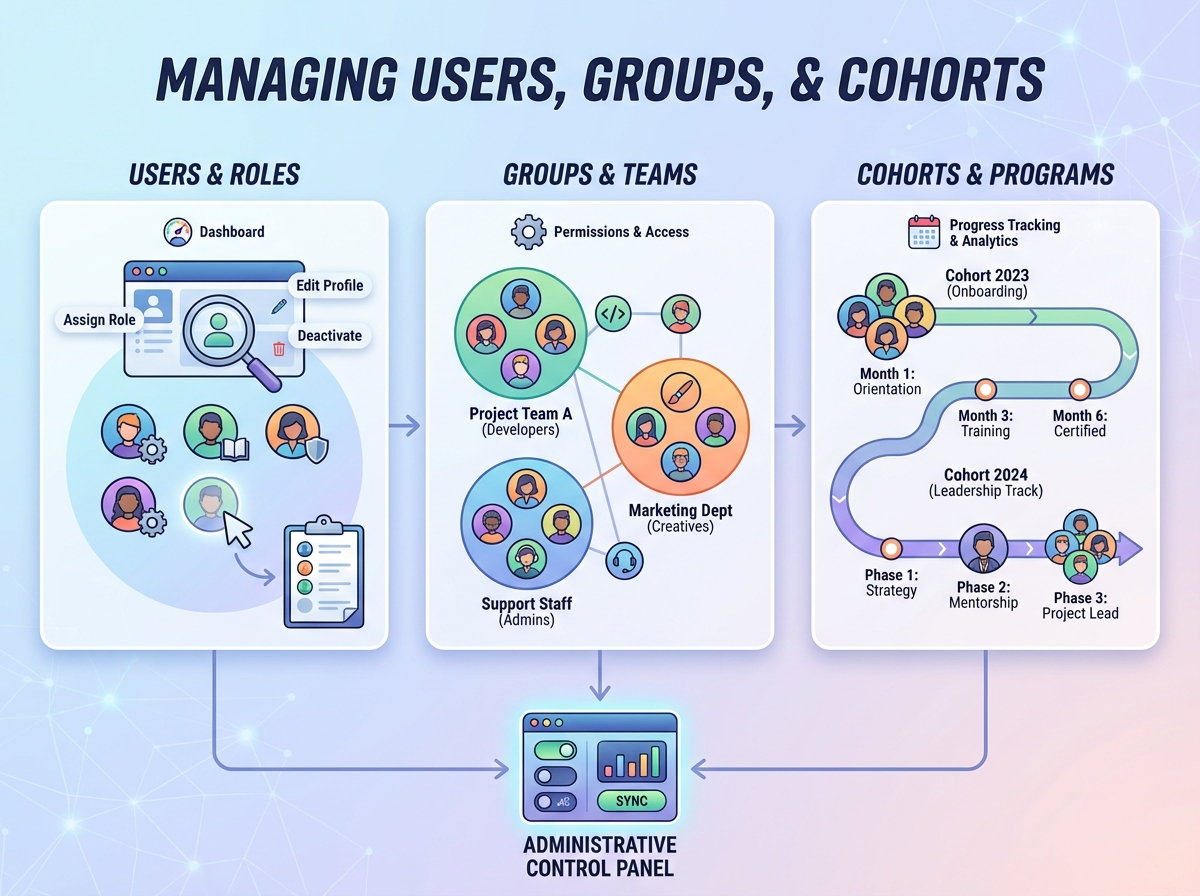
In this section, you'll discover how to effectively manage users, groups, and cohorts within Moodle 5.1, which is crucial for SaaS clients, LMS managers, and L&D designers. Understanding user management is essential for creating personalized learning experiences and ensuring efficient learning environment operations. This knowledge will empower you to organize learners efficiently and tailor user experiences to meet diverse educational needs.
Learning Objectives
-
Understand and apply user management techniques within Moodle 5.1.
-
Configure and utilize cohorts to enhance learning experiences.
-
Manage permissions and access rights to foster secure and controlled learning environments.
Activities: 6 -
-
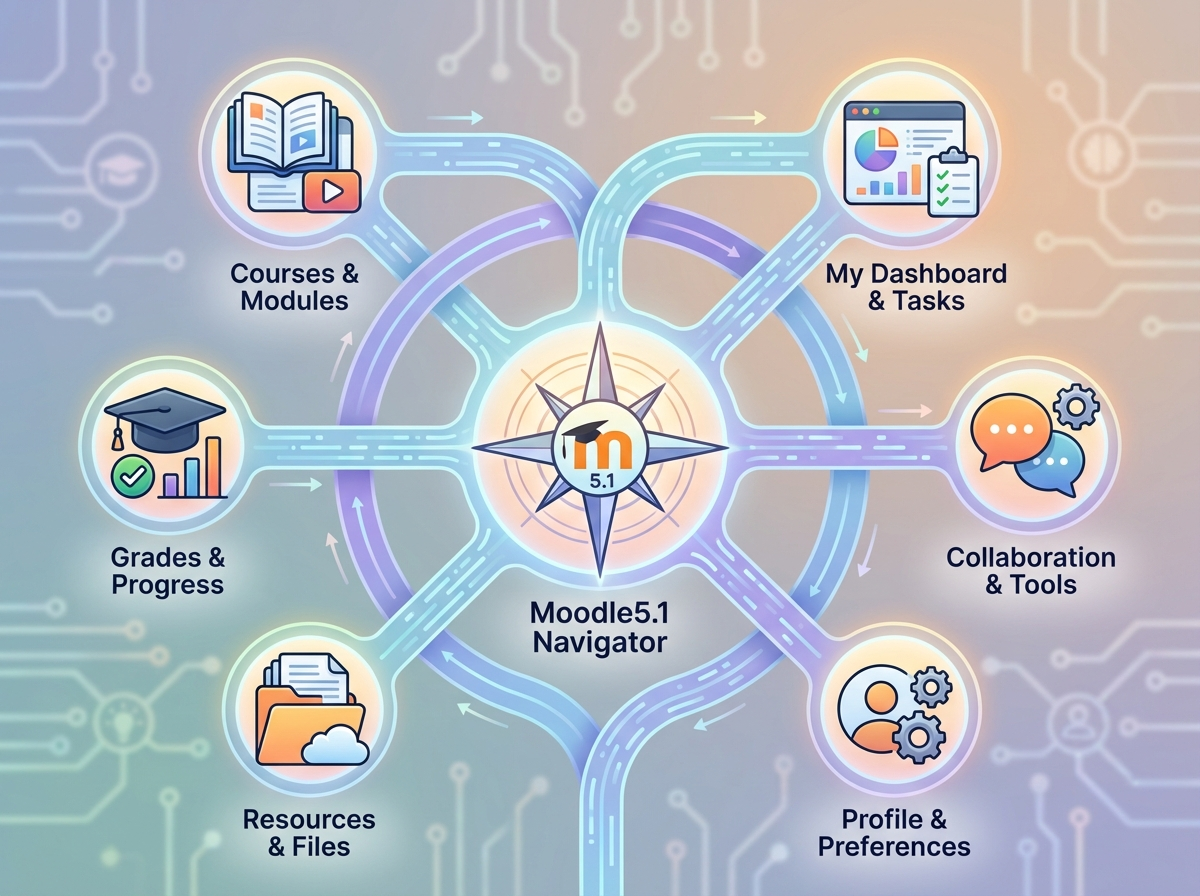
Introduction
This section is crucial for understanding how to leverage the comprehensive features of Moodle 5.1 effectively. As a Moodle administrator or LMS manager, you'll gain insights into which tools and features can optimize learning experiences and administrative efficiency. It is particularly tailored for Moodle5.1 SaaS clients and L&D designers, ensuring that you can effectively integrate Moodle's capabilities within your organization.
Learning Objectives
- Identify and describe key features of Moodle 5.1 that are most beneficial for enhancing learning and administrative processes.
- Evaluate the appropriate use of specific tools and features within Moodle 5.1 to maximize learning outcomes.
- Recognize potential limitations and integration opportunities with external tools and services in Moodle 5.1.
Activities: 6 -
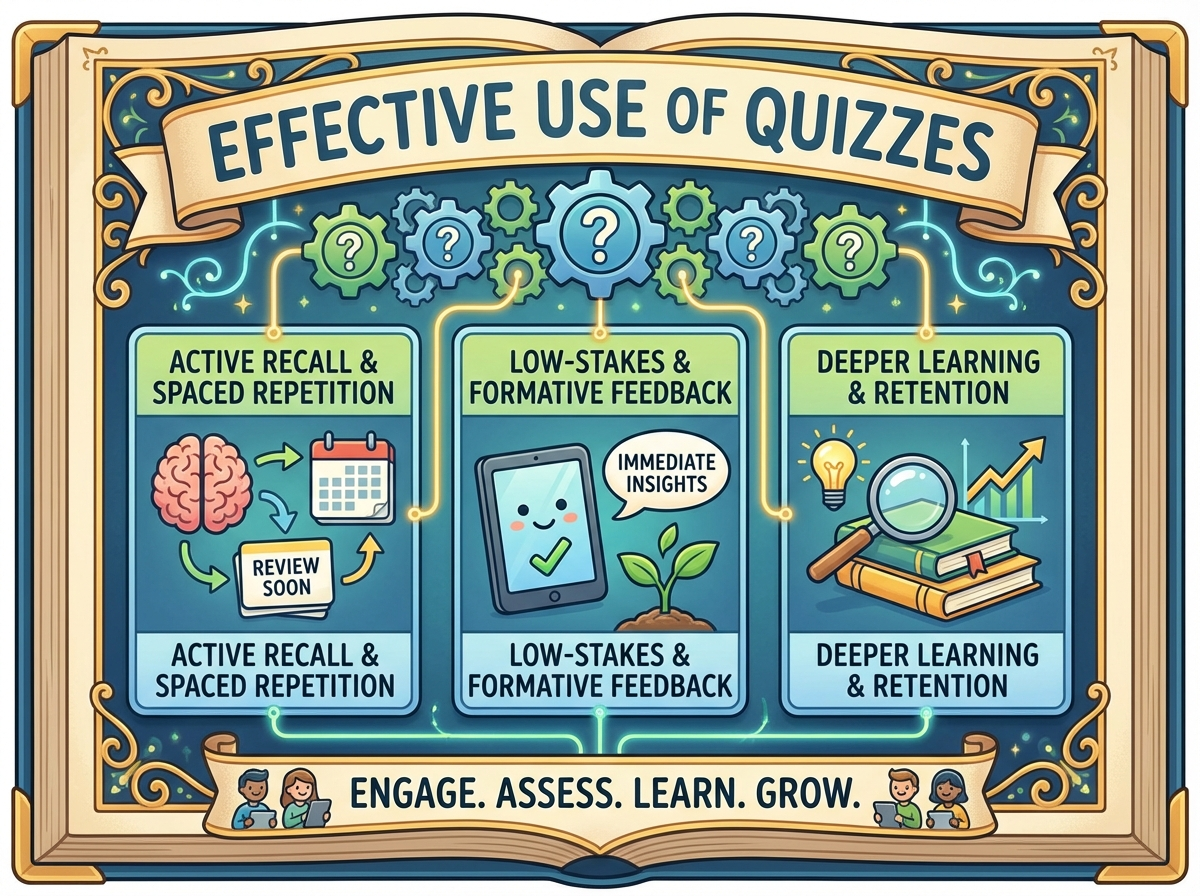
Introduction
In the Moodle 5.1 environment, quizzes are a dynamic tool that can enhance learner engagement and assess understanding in a structured way. This section is crucial for Moodle SaaS clients, LMS managers, and L&D designers as it enables you to harness the full potential of quizzes within your learning ecosystem. By understanding strategic quiz design and integration, you can effectively gauge learner progress and deploy insightful assessments tailored to the needs of your educational programs.
Learning Objectives
-
Develop strategic quiz questions that align with learning goals.
-
Integrate quizzes effectively within courses to enhance learning and engagement.
-
Analyze quiz results to identify areas for instructional improvement.
Activities: 5 -
-
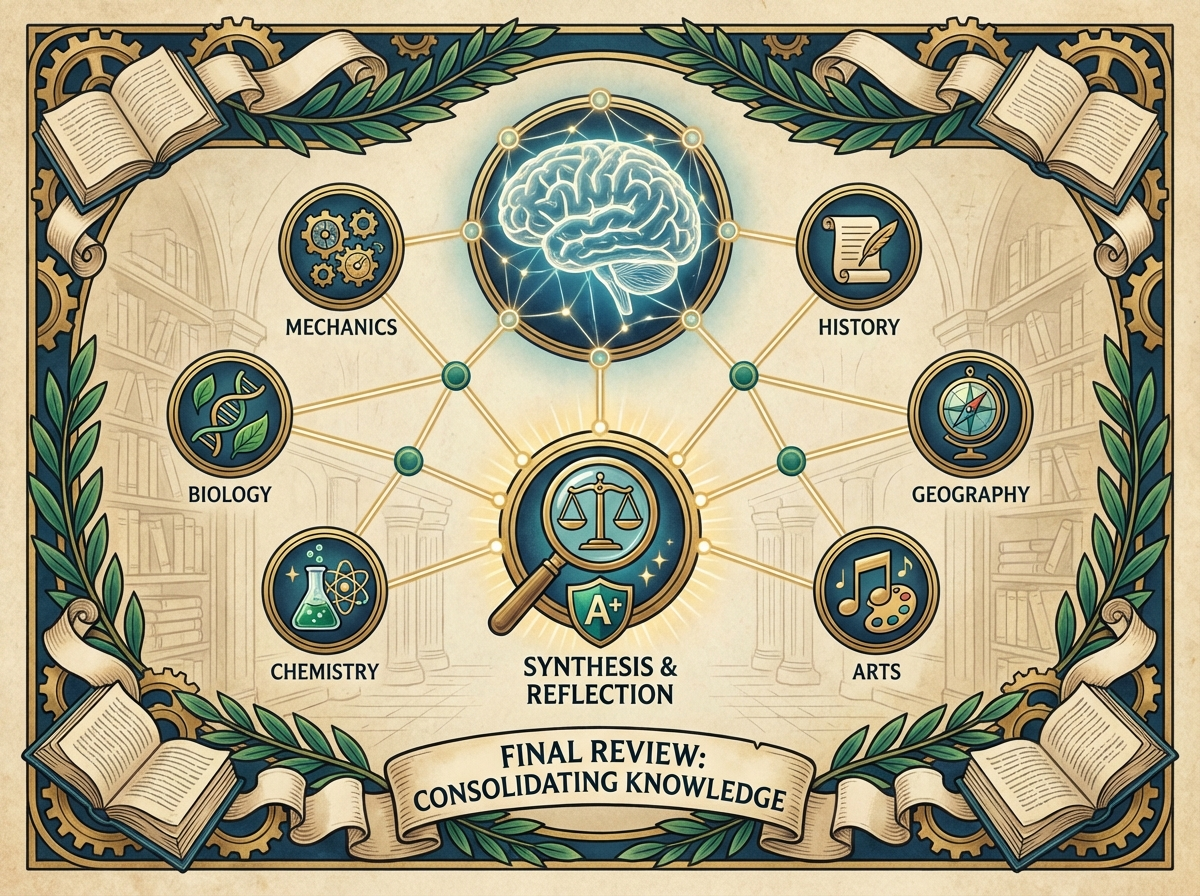
Introduction
The "Final Review" section serves as a capstone to the Moodle 5.1 Site Administration course. It is vital for Moodle5.1 SaaS clients, LMS managers, and L&D designers because it consolidates all the key concepts learned throughout the course. This section not only reinforces understanding but also guides learners towards future learning pathways, ensuring they can apply their new skills in real-world settings. By revisiting core ideas and projecting forward, learners solidify their knowledge and prepare for practical application.
Learning Objectives
-
Review and consolidate key concepts from the Moodle 5.1 Site Administration course.
-
Identify and articulate future learning and development opportunities within the Moodle ecosystem.
-
Assess personal mastery of Moodle 5.1's administrative features in preparation for practical application.
Activities: 4 -
-
Activities: 0